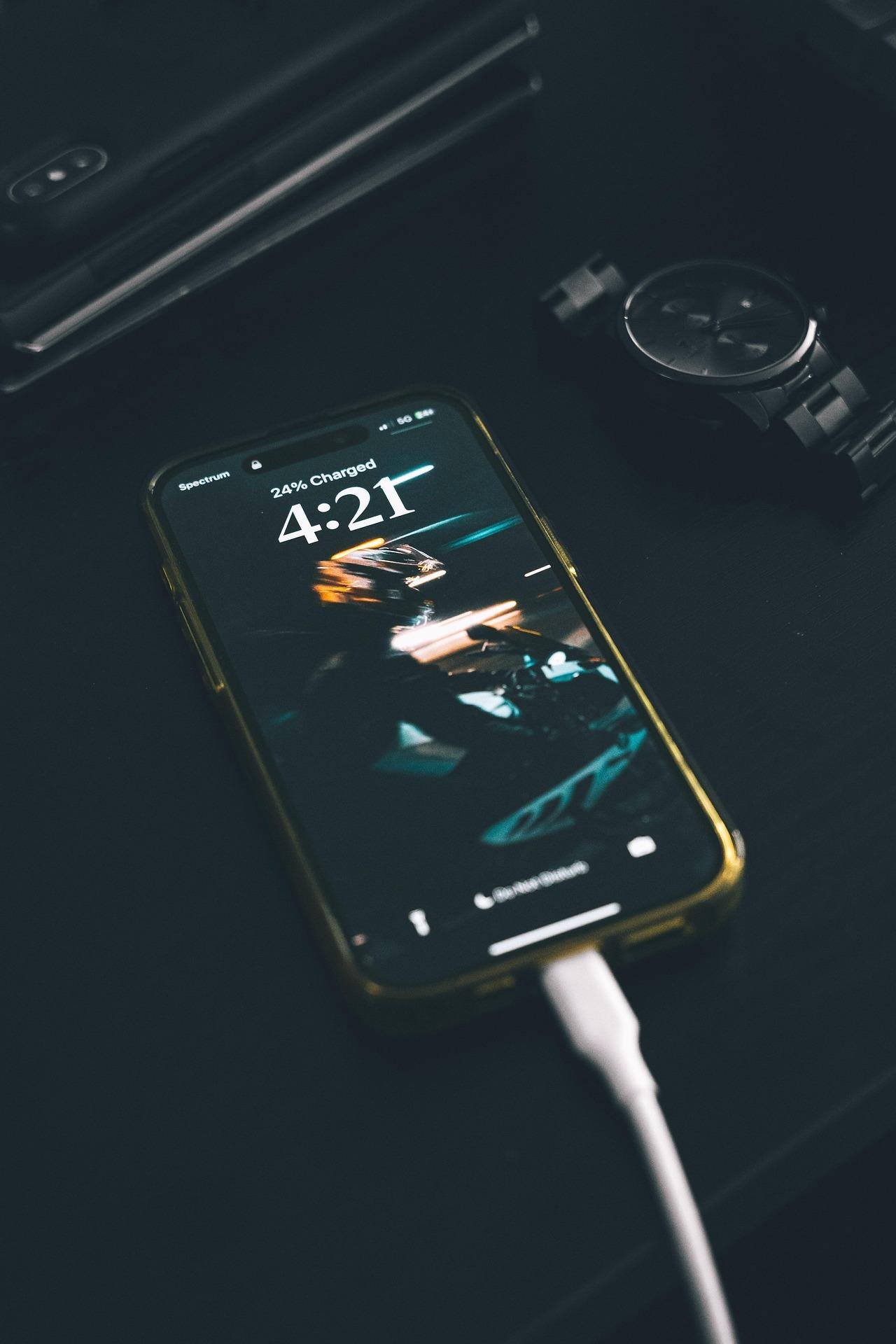

How to Fix “No Service” on iPhone
I noticed something was wrong when my iPhone suddenly displayed “No Service” at the top of the screen. I couldn’t make calls, send texts, or use mobile data unless I connected to Wi-Fi. At first, I thought it was just a temporary network issue in my area.
I waited a few hours, but the signal never returned. That’s when I decided to troubleshoot step by step instead of panicking.
The first thing I did was toggle Airplane Mode on and off. Sometimes this forces the phone to reconnect to the network. Unfortunately, that didn’t fix it.
Next, I restarted the phone completely. A simple reboot can refresh network connections and fix minor glitches. After restarting, I still saw “No Service.”
I then checked for a carrier settings update by going to Settings → General → About. If an update is available, a prompt will appear. Installing the update didn’t immediately solve the issue, but it’s always worth checking.
After that, I removed and reinserted my SIM card. I turned off the phone, carefully removed the SIM tray, cleaned the card gently, and placed it back. When I powered the phone back on, the signal returned briefly — then disappeared again.
The next step was resetting network settings:
- Go to Settings
- Select General
- Tap Transfer or Reset iPhone
- Choose Reset
- Select Reset Network Settings
This erased saved Wi-Fi passwords but forced the phone to rebuild its network configuration. After the reset, my signal finally returned and stayed stable.
Later, I also contacted my mobile carrier to confirm there were no outages or account-related issues. In some cases, unpaid bills or SIM deactivation can cause “No Service.”
The biggest lesson I learned is to troubleshoot step by step — starting from the simplest solutions before assuming hardware damage. Most “No Service” issues are software or SIM-related and can be fixed without replacing the phone.